
MULTI-STATEMENT WORKFLOW
Merge monthly bank statements. Keep each row traceable.
To combine monthly bank statements into one spreadsheet, review and export each statement first. In a separate working copy, append matching transaction columns under one header, check overlapping periods against the PDFs and retain source references. Keep each account and currency separate for import. Stmtio handles local conversion and review; the spreadsheet append and duplicate decisions in this guide are manual.
By Stmtio Team · Checked October 29, 2026 · Synthetic examples, no customer records
01 / DEFINE THE OUTPUT
One account, one currency, a known period.
Read the statement dates inside each PDF. A file named “February” may include January 31. List all expected periods and pages, check for a missing month and flag overlapping date ranges before appending anything.
For multiple accounts, maintain separate output tables or sheets with explicit labels. For a bookkeeping import, create a separate file for each target account and currency. A transfer appearing in two accounts is not a duplicate to remove from both.
Keep the PDFs and untouched exports. Add source filename, statement period, page and any available bank reference to your working copy. Use an account alias rather than placing a full account number in a shared filename.
These source labels are manual annotations. Stmtio’s standard exports contain Date, Description, Amount, Currency and Review status; they do not automatically add the source columns shown in the example below.
02 / CONVERT, REVIEW, THEN APPEND
A batch is the starting point.
- 01
Inventory the PDFs
Record the account, currency, actual statement start/end dates and page counts. Sort by statement period, not the filename or the order files were selected. Identify gaps and overlaps before starting.
- 02
Convert and review each statement
Add the PDFs to Stmtio, select the intended pages and follow the local queue. Open each result beside its source PDF. Resolve failed or partial files before treating the set as complete; a completed queue does not certify the extracted records.
- 03
Save a separate export for each result
Use the same standard CSV or XLSX format throughout. Name each untouched export with an account alias and source period. Stmtio exports one conversion result at a time; the spreadsheet append described here is a separate manual step.
- 04
Append rows in a working copy
Create one transaction table. Keep the first header once, then append only transaction data rows from the other exports. Match columns by meaning and order, including dates, signed amounts, currency and review status. Never paste a second header, balance or subtotal as a transaction.
- 05
Resolve overlaps and verify the result
Inspect candidate repeats against both PDFs before removing an extra occurrence. Retain the source filename, page and the reason for each decision in the working copy. Sort the entire table by date, keeping source order as a tie-breaker, then check counts, totals and the destination preview.
Use the page-by-page review checklist before exporting. For file representations, read the CSV versus Excel guide. A repeated header is a schema line to skip while appending, not a transaction to mark as reviewed.
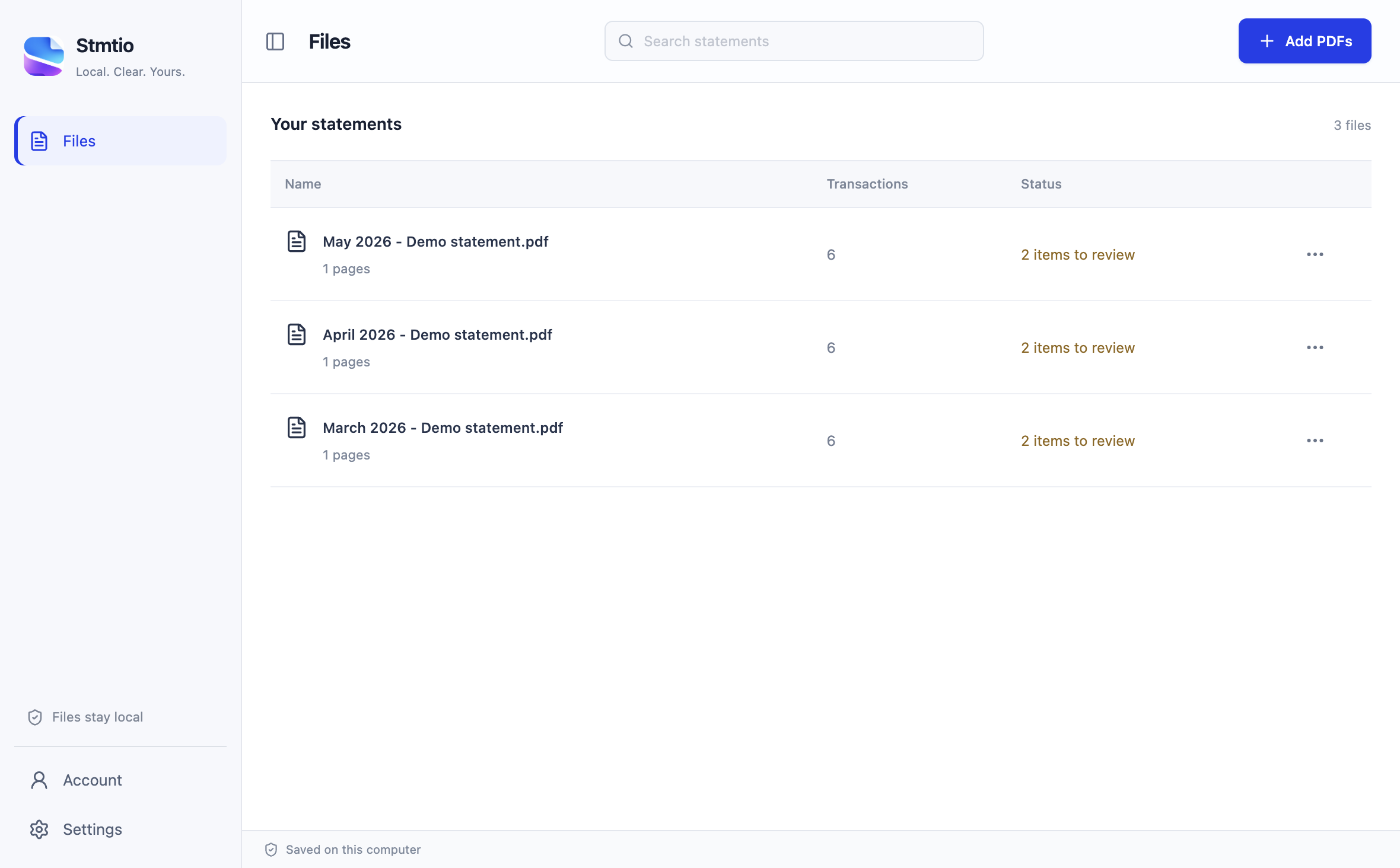
Failed files retain their originals and saved pages; open each to review or resume. Do not count a partial result as a complete month. The current batch UI limits a run to 500 selected pages and checks your page allowance online. Test a representative statement before expanding the batch.
03 / SYNTHETIC OVERLAP TEST
Six exported rows. Five source transactions.
Both invented files belong to Demo checking A in USD. January-demo.pdf covers January 1–31; February-demo.pdf covers January 31–February 28. They overlap on January 31. The source and reference fields below were added for this educational example.
| Source / page | Date / description | Amount | Reference | After source comparison |
|---|---|---|---|---|
| January-demo.pdfPage 1 · Jan 1–31 | 2026-01-10Client payment | $1,000.00 | T01 | Keep |
| January-demo.pdfPage 1 · Jan 1–31 | 2026-01-31Subscription | -$25.00 | T02 | Keep |
| February-demo.pdfPage 1 · Jan 31–Feb 28 | 2026-01-31Subscription | -$25.00 | T02 | Remove extra occurrence; retain jan-2 |
| February-demo.pdfPage 1 · Jan 31–Feb 28 | 2026-02-03Rent | -$300.00 | T03 | Keep |
| February-demo.pdfPage 1 · Jan 31–Feb 28 | 2026-02-15Card payment | -$50.00 | T04 | Keep: separate legitimate transaction |
| February-demo.pdfPage 1 · Jan 31–Feb 28 | 2026-02-15Card payment | -$50.00 | T05 | Keep: separate legitimate transaction |
Remove only the verified overlap.
The two T02 entries refer to the same January 31 subscription in the two synthetic PDFs. Retain jan-2 and record why feb-1 was omitted from the combined working copy. Do not rewrite the original exports.
Raw append: 6 rows, $550.00 net activity. After that one confirmed removal: 5 rows, $575.00. With the first period’s opening balance of $100.00, the union closes at $675.00.
Keep the two real same-amount payments.
T04 and T05 are separate February 15 payments, each -$50.00. The date, description and amount all match, but the source records establish two transactions. A blanket “remove duplicates” operation on those three fields would wrongly delete one.
A matching reference is also only a candidate until account, currency and source evidence agree. If the PDFs do not establish the relationship, keep the candidate unresolved and investigate; do not guess.
Decision trail: feb-1 → same source transaction as jan-2 / T02, confirmed in both PDFs; omitted only from the combined copy. T04 and T05 retained as distinct source transactions. These IDs are educational annotations, not extra fields generated by Stmtio.
04 / CHECK BEFORE IMPORT
Account for every change in count and total.
- Reconcile the row count. Sum included rows in the saved exports, then subtract only confirmed extra occurrences. Do not count repeated headers, summaries or balance lines as transactions.
- Check signed totals. Compare each export with its own statement, then explain the net change caused by confirmed overlap removals. For non-overlapping consecutive periods, check closing/opening balance continuity where available. Overlapping periods need their own source controls; do not sum every month’s opening and closing balances.
- Keep the whole row together. Sort the entire table, including source columns, rather than sorting a date column alone. Preserve same-day source order; sorting does not establish transaction identity.
- Reopen the saved output. Check dates, negative values, column order, row count and source labels. Standard CSV uses ISO dates; XLSX has typed date and numeric cells. Do not mix standard five-column files with the dedicated three-column QuickBooks CSV.
- Inspect a destination preview. Select the correct account, map the expected columns and avoid records already present from a bank feed or prior import. Keep a source-annotated master, then prepare a separate import copy containing only columns the destination accepts.
Follow the conversion reconciliation guide for independent controls, or the QuickBooks upload guide for that destination. This synthetic example was not imported into a real bookkeeping account.
COMMON QUESTIONS
Keep the original evidence.
Does Stmtio merge every file in a batch into one export?
The current workflow exports an individual conversion result. You can queue multiple PDFs, review each result and then append their exports in a separate spreadsheet working copy. This guide does not describe a one-click combined-export feature.
Should I merge the PDFs first?
This guide combines transaction data after review. Joining PDF pages alone does not create a transaction spreadsheet or resolve overlapping records. Keep original statements so each exported row remains traceable.
Can I delete all rows with the same date and amount?
No. Two legitimate transactions can have the same date, description and amount. Compare source records, account, currency and references where available. Remove only an occurrence confirmed to represent the same source transaction.
Can I mix several accounts in one worksheet?
For an import, keep a separate output for each account and currency. A reporting workbook can have separate tables or sheets with explicit account labels; do not silently mix accounts into a single import file. Transfers remain real entries in each account.
Does the export include only rows visible in the review filter?
No. Table filters do not restrict the saved file. Excluded rows are omitted, but unreviewed rows are not automatically excluded. Check the export preview and reopen the saved file before appending it.
Need to review a different part of the workflow? Browse the bank statement guides for PDF preparation, transaction checks, export formats and extraction troubleshooting.
Working through an old backlog? Follow the catch-up bookkeeping workflow to track missing months, complete monthly checks and prepare a clear handoff before combining files.
Checked by Stmtio Team on October 29, 2026 against the current import dialog, batch queue and per-result CSV/XLSX export code. Synthetic overlap tests verify one confirmed duplicate removal while retaining two legitimate same-date, same-amount payments, consistent column order and source annotations. This does not establish automatic duplicate detection, all-bank compatibility or tested integration with every spreadsheet application.
LOCAL EXTRACTION AND REVIEW
Review the source before combining the rows.
Stmtio processes and stores statement PDFs, extracted text and transactions on your computer. Sign-in, subscription, device registration and page-allowance checks require online services. Sharing or uploading an export is a separate action. Read the data-handling boundaries.
Available for Windows x64 and macOS on Apple silicon and Intel. Stmtio 0.1.0 Preview supports USD exports and has unsigned installers. Start with 10 free pages. Excluded rows are omitted, but unreviewed rows are not automatically excluded; table filters do not restrict the export.
Choose your installer ↗