
BANK TRANSACTION AMOUNT GUIDE
Bank statement debit and credit columns. Get the signs right.
When converting a bank statement to CSV, first identify which column means money out and which means money in for that account. In Stmtio’s bank-account convention, money out becomes a negative amount and money in becomes positive. Check known payments and receipts against the original PDF before mapping columns. Do not assume every bank, credit card or accounting importer uses the same labels.
By Stmtio Team · Checked October 26, 2026 · Synthetic USD bank-account examples
TWO SOURCE LAYOUTS
Separate the direction from the column name.
Two unsigned amount columns
A statement may put withdrawals and deposits in separate columns. After confirming their meaning, map money out and money in separately. In the example below, a populated outgoing cell of 86.50 becomes -86.50; an incoming 2400.00 becomes 2400.00.
The unused cell is blank in the source. A dash in our display means blank, not a zero-value transaction. Do not combine two populated cells until you have resolved what the source actually says.
One signed amount column
Another layout may already contain negative and positive amounts. Preserve a verified sign instead of applying a second sign based on the description. In arithmetic, the convention used here is signed amount = money in − money out.
This is a bank transaction import convention, not a rule for posting general-ledger debits and credits. Source headings, account types and destination mappings must be checked separately.
SYNTHETIC SOURCE AND OUTPUT
Five transactions. The same money after conversion.
These invented records belong to one bank account. For this example only, the statement labels money out as Debit and money in as Credit. The figures are not customer data, a supported-bank claim or an accuracy benchmark.
| Date | Description | Debit / money out | Credit / money in | Signed amount |
|---|---|---|---|---|
| 2026-03-02 | Client receipt | — | 2400.00 | 2400.00 |
| 2026-03-03 | Office supplies | 86.50 | — | -86.50 |
| 2026-03-04 | Supplier refund | — | 20.00 | 20.00 |
| 2026-03-05 | Transfer to savings | 300.00 | — | -300.00 |
| 2026-03-06 | Monthly account fee | 25.00 | — | -25.00 |
- Money in
- $2,420.00
- Money out
- $411.50
- Net movement
- $2,008.50
An opening balance of $1,000.00 plus $2,008.50 net movement gives $3,008.50. The five source transactions stay five output records. Flipping the office-supplies payment from -86.50 to +86.50 would overstate the result by $173.00, not $86.50.
Inspect the standard CSV after review
Date,Description,Amount,Currency,Review status
2026-03-02,Client receipt,2400.00,USD,confirmed
2026-03-03,Office supplies,-86.50,USD,confirmed
2026-03-04,Supplier refund,20.00,USD,confirmed
2026-03-05,Transfer to savings,-300.00,USD,confirmed
2026-03-06,Monthly account fee,-25.00,USD,confirmed
The standard export has Date, Description, Amount, Currency and Review status. The snippet omits the file’s UTF-8 BOM. “confirmed” represents a completed human review in this example, not an automatic guarantee. See the CSV export guide and CSV versus XLSX guide before handoff.
KEEP THE ACTUAL MOVEMENT
Refunds and transfers need context.
A refund can reverse an earlier movement.
The $20.00 supplier refund in the example enters this account, so its signed amount is +20.00. A refund you pay to someone else leaves the account and has the opposite direction. Do not make every row containing “refund” positive.
A positive amount is not automatically revenue. The transaction’s bookkeeping category is separate from its cash direction.
A transfer still belongs to this account.
The $300.00 transfer to savings leaves this source account, so the example uses -300.00. A corresponding savings-account entry would be reviewed separately as money entering that other account.
Do not remove a transfer to make the statement look like an income report, or merge two accounts’ records into one account import. Preserve the account identity and match each statement to its own balance.
IN STMTIO 0.1.0
Choose the source layout, then review.
- In manual column selection, choose One signed amount or Separate debit / credit under Amount columns. These are alternative layouts, not settings to combine.
- For split columns, assign Money out and Money in according to known source transactions. Stmtio applies a negative sign to money out and a positive sign to money in.
- Choose the full date format and column boundaries. Check each distinct statement layout. Use Adjust columns if the result has the wrong fields.
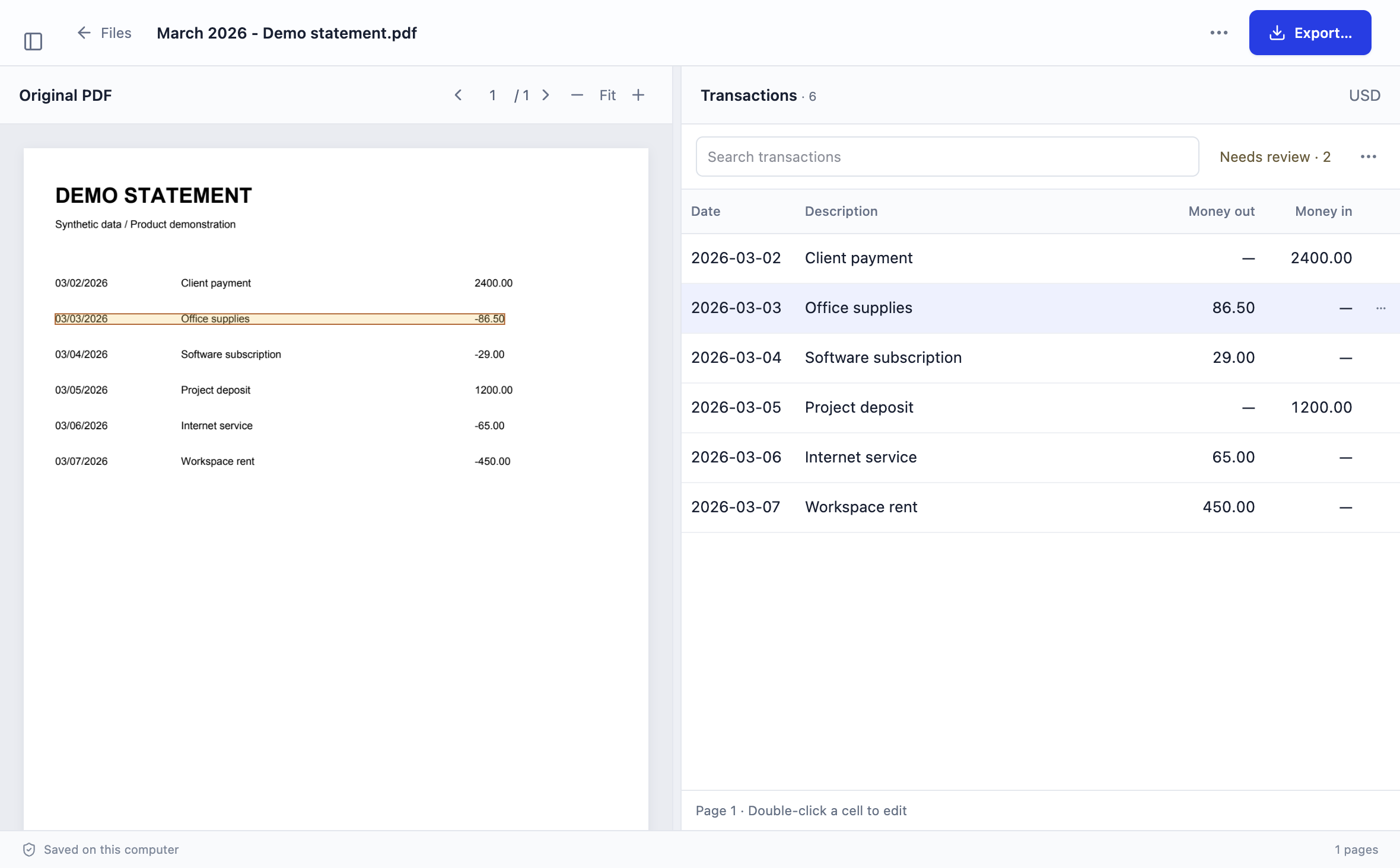
- Compare the extracted dates, descriptions and amounts beside the PDF. Edit incorrect fields before exporting. An amount edit uses a minus sign for money out.
Stmtio’s separate-column mapper leaves rows for review when both amount fields are populated, both are empty, or the populated split amount parses as negative. A printed 0.00 is still a populated field, so a zero placeholder beside another amount also needs attention. Do not assume it will be silently ignored.
WHEN TO STOP AND CHECK
Not every sign notation is a supported layout.
In a single signed USD amount, the current parser accepts a leading minus or plus and an unambiguous parenthesized negative such as (86.50). A negative value in a split amount column is treated as ambiguous instead of being reversed again.
CR/DR suffixes, unusual decimal conventions, unreadable OCR characters or shifted columns need source review rather than an assumed sign. Stmtio does not infer a correct direction from words such as payment, refund or transfer.
Credit-card statements and importers may use a different perspective. Intuit’s CSV format guidance covers three-column and four-column layouts and warns that credit-card signs may differ. Its Credit/Debit headings are not a universal substitute for Stmtio’s Money in/Money out roles. Verify the correct account type and import preview before changing signs.
For that destination, use the QuickBooks three-column reference and upload guide. Stmtio’s QuickBooks option is three columns, not a separate debit/credit CSV export.
VERIFY BEFORE IMPORTING
Check individual directions and totals.
- Sample both directions. Inspect a known payment and receipt, plus a refund or transfer if present. Compare their magnitudes and signs with the original PDF.
- Count the records. Confirm that each actual transaction appears once. Exclude headers and balance summaries, not real movements. For wrapped text, use the split-description repair guide.
- Reconcile where possible. For this bank-account convention, compare opening balance plus signed movements with the statement’s closing balance. If balances are absent, mark that check unavailable. A matching total does not prove every row is correct.
- Inspect the saved file. Check CSV or XLSX amounts after export. Excluded rows are omitted, but unreviewed rows are not automatically excluded. Do not apply another sign reversal just because the destination shows a different header.
- Review the destination preview. Select the intended account, map its columns deliberately and inspect a small representative set before confirming. Stop if money in appears as money out or an existing transaction would be duplicated.
Use the full statement review checklist for page boundaries, descriptions and missing rows.
After checking the signs, use the converted bank statement reconciliation guide to compare record identities, page boundaries and independent closing balances.
COMMON QUESTIONS
Resolve the direction before the handoff.
Are debit and credit labels enough to choose a sign?
No. Identify the account type and check known transactions against the statement. For the synthetic bank-account example here, Debit means money out and Credit means money in. That is not a universal mapping for every source or importer.
Should a refund be positive?
For this bank-account convention, a refund received into the account is positive. A refund paid out is negative. Follow the actual movement shown by the source, not just the word refund. Its accounting category is a separate decision.
Can I delete a transfer because it is not income?
No. A transfer out still decreases this account and belongs in its transaction review. A counterpart in another account is a separate source record. Do not drop either side or classify it as revenue solely from the sign.
What if both amount columns contain values?
Stop and inspect the PDF. Stmtio’s separate-column mapper flags rows with both columns populated, both empty, or a negative split-column amount for review. Do not silently net two source values or turn a blank into an invented transaction.
Checked by Stmtio Team on October 26, 2026 against the current column mapper, amount parser and CSV/XLSX export code, plus Intuit’s first-party CSV format guide. The five synthetic transactions were checked through both mapping layouts and both exporters; ambiguous split rows were checked separately. This is not an all-bank-layout test or a live QuickBooks import test.
LOCAL EXTRACTION AND REVIEW
Keep the PDF beside the numbers.
Stmtio processes and stores statement PDFs, extracted text and transactions on your computer. Sign-in, subscription, device registration and page-allowance checks require online services. Uploading an exported file to another service is a separate action.
Available for Windows x64 and macOS on Apple silicon and Intel. The current Stmtio 0.1.0 preview supports USD exports and has unsigned installers. Start with 10 free pages. Read the data-handling boundaries before sharing sensitive files.
Choose your installer ↗