
BANK STATEMENT CLEANUP GUIDE
Fix split transaction descriptions. Keep each payment intact.
To fix split bank transaction descriptions in Excel, first check the original PDF. If two printed lines belong to one transaction, combine only their description text and keep its date and signed amount unchanged. If they are separate payments, keep separate rows. Work on a copy, then verify transaction counts, amounts and source references before using the export.
By Stmtio Team · Checked October 19, 2026 · Synthetic examples, not an accuracy benchmark
CHECK BEFORE COMBINING TEXT
A printed line is not always a transaction.
A merchant name, address or payment reference may wrap onto another line in the PDF. An extraction can leave that text in a separate worksheet row, attach it to the next payment, or miss it entirely.
A line break inside one Excel cell is a different issue. If the full description is already in one record and the amount is correct, you may only need to adjust its display. Do not create or remove transactions to change how a cell wraps.
- Compare indentation, column position and the surrounding entry on the source page.
- Check whether the continuation has its own date, amount or transaction reference.
- Inspect the end of one page and the start of the next. Headers and balances are not description text.
- Treat blank dates, repeated amounts and similar wording as clues, not proof.
SYNTHETIC BEFORE AND AFTER
Four printed lines. Three transactions.
This invented USD statement has one wrapped description. The broken worksheet illustrates a possible extraction error; it is not a claim that Stmtio produces this exact result.
Original PDF text
2026-03-02  Client payment                 +2400.00
2026-03-03  Office supplies                  -86.50
            paper and envelopes
2026-03-13  Monthly account fee              -25.00
“paper and envelopes” continues “Office supplies.” It has no separate amount in this synthetic source.
Broken worksheet
| Date | Description | Amount |
|---|---|---|
| 2026-03-02 | Client payment | 2400.00 |
| 2026-03-03 | Office supplies | -86.50 |
| Blank | paper and envelopes | Blank |
| 2026-03-13 | Monthly account fee | -25.00 |
Reviewed result
| Date | Description | Signed amount |
|---|---|---|
| 2026-03-02 | Client payment | 2400.00 |
| 2026-03-03 | Office supplies paper and envelopes | -86.50 |
| 2026-03-13 | Monthly account fee | -25.00 |
3 transactions · net movement $2,288.50. An opening balance of $1,000.00 would give a closing balance of $3,288.50. No amount is added for the continuation. A matching balance still cannot detect description text attached to the wrong payment.
Inspect the reviewed standard CSV
Date,Description,Amount,Currency,Review status
2026-03-02,Client payment,2400.00,USD,confirmed
2026-03-03,Office supplies paper and envelopes,-86.50,USD,confirmed
2026-03-13,Monthly account fee,-25.00,USD,confirmed
The status “confirmed” represents the completed review in this example, not an automatic accuracy guarantee. The downloadable synthetic CSV uses Stmtio’s standard five-column format with a UTF-8 BOM.
SAFE SPREADSHEET REPAIR
Correct text without changing the ledger.
Keep the original and an untouched export.
Save a separate working copy. Keep the original row order until you have matched every suspected continuation to its PDF page and transaction.
Identify the owning transaction.
Read the full source entry, including any reference on the next printed line. If ownership is uncertain, mark it for review. Do not fill dates down or join every blank-date row in bulk.
Join description text only.
In the working copy, place the verified continuation after the original description with a space. Preserve references and meaningful punctuation. Leave the transaction’s date and signed amount unchanged. Do not use Excel’s Merge Cells command as a substitute for combining the text.
Remove only a proven continuation record.
If the extra worksheet row contains only continuation text, remove it from the working export after preserving that text. If it contains another amount or a separate payment, stop and resolve it against the PDF. Never discard it just to make totals match.
Check the repaired output.
Count actual transactions, compare every affected description and amount, and reconcile balances where provided. Keep separate payments separate even when their dates and amounts match. Review adjacent rows and page boundaries again.
REPAIR BESIDE THE PDF
Use the source while you edit.
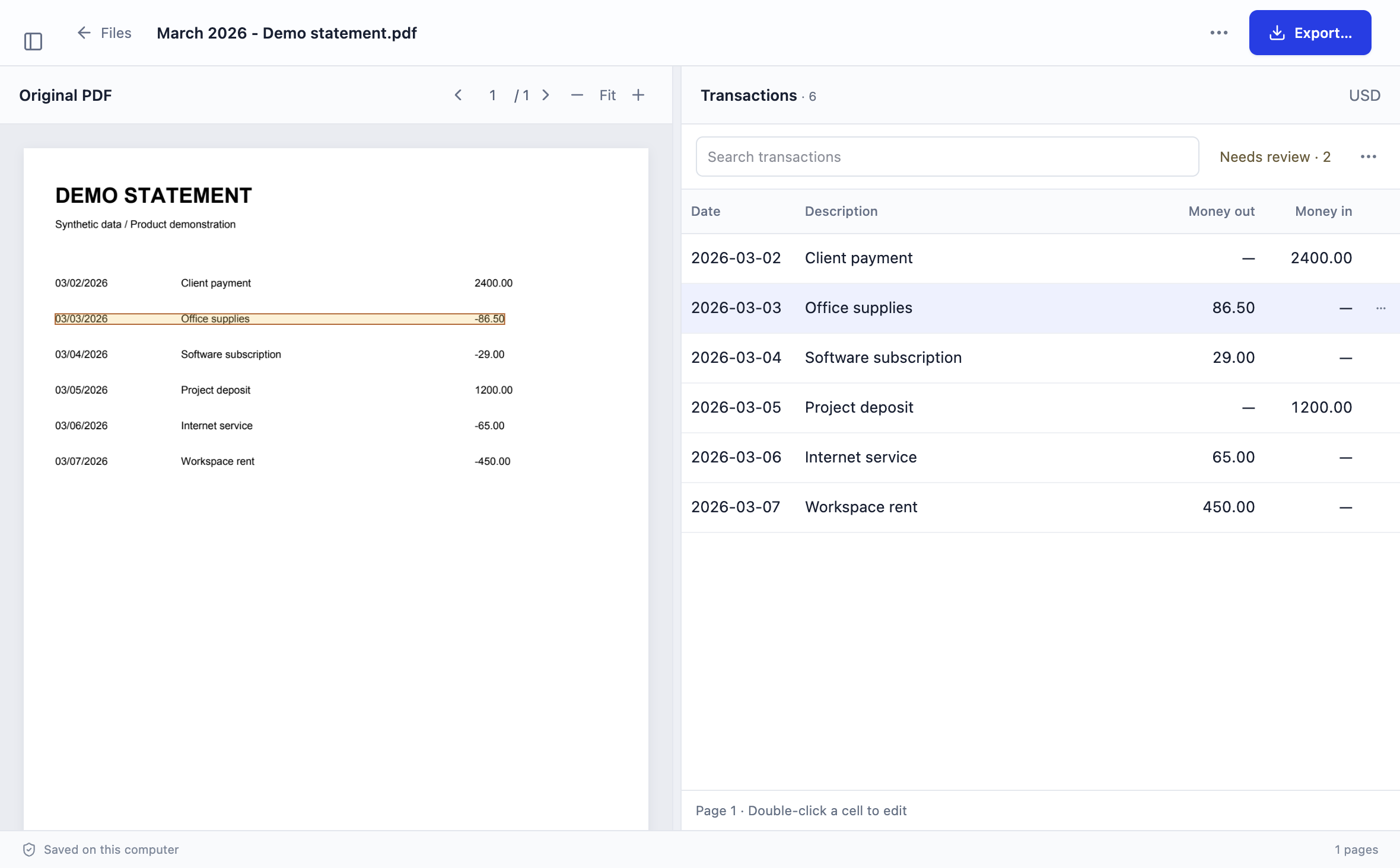
In Stmtio 0.1.0, double-click the existing description cell, or focus it and press Enter. Add the verified continuation text and save with Enter or the Save button. Escape cancels an edit.
For a proven non-transaction row that is already present, use its row menu’s Exclude from export. This keeps it out of CSV and XLSX without claiming it was a real payment. Do not exclude a separate transaction or use a zero amount to disguise missing information.
There is no dedicated merge-rows button. An Add transaction form is available for a flagged unparsed row, not as an unrestricted spreadsheet row-insertion tool. If a payment is missing or ambiguous, resolve that issue or re-extract instead of treating a description edit as a recovery.
For the rest of the checks, use the bank statement review checklist. The local converter workflow explains import, review and export.
WHEN MANUAL CLEANUP IS NOT ENOUGH
Re-extract when the structure is wrong.
A few verified continuations can be repaired individually. Widespread shifted columns, missing amounts or unreadable text call for another pass from the source.
- Wrong column boundaries: use Adjust columns in Stmtio and review the new result. Check description and amount columns on each distinct layout.
- Poor scan quality: obtain a clearer, complete PDF where possible. Cropping, skew and faint text may require source correction before local OCR can produce useful text.
- Page-boundary gaps: check both pages and whether all intended pages were processed. Do not reconstruct missing transactions from totals alone.
- Uncertain ownership: keep the issue unresolved until the PDF or another authorized source clarifies it. Re-extraction is not a guarantee of a correct result.
Keep the earlier export so you can compare results. Starting a new conversion requires an online page-allowance check and may use additional pages from your allowance.
BEFORE HANDOFF
Verify the file, not just the table.
Export a fresh CSV or XLSX after saving your changes. Check the final descriptions, dates, signed amounts and transaction count. Excluded rows are omitted, but unreviewed rows are not automatically excluded.
Do not count raw text-file lines as CSV records when descriptions contain embedded line breaks. Open or import the CSV as a structured table, and check that each description stays in one field. For format differences, see CSV versus Excel and the QuickBooks three-column CSV guide.
Stmtio 0.1.0 supports Windows x64 and macOS on Apple silicon and Intel. Its current transaction exports support USD. Statement PDFs, extracted text and transaction data are processed and stored on your computer.
Sign-in, subscription, device registration and page-allowance checks require online services. Uploading an exported file to accounting software is a separate action. Read the data-handling boundaries before sharing sensitive files.
Checked by Stmtio Team on October 19, 2026 against the current review controls and CSV/XLSX export code. The synthetic reviewed example was checked through both export functions. This is not a test of every bank layout or a guarantee that automatic extraction repairs all wrapped descriptions.
COMMON QUESTIONS
Decisions that need the source.
Should I merge every row with a blank date?
No. A blank date is only a clue. The row could be a continuation, a separate transaction with an omitted date, a header, or an extraction failure. Check its position and text in the original PDF before changing anything.
Can matching dates and amounts identify duplicates?
Not by themselves. Two payments on the same date can have the same amount. Compare the source entries and references. Do not delete or combine them solely because spreadsheet values match.
Does a matching balance prove the descriptions are correct?
No. Swapped or missing description text can leave every amount unchanged. Reconcile totals and also check that each description belongs to the right transaction.
Does Stmtio have a merge-rows button?
Stmtio 0.1.0 has no dedicated merge-rows button. You can edit an existing description beside the PDF and exclude a proven non-transaction row from export. Missing or ambiguous transactions need separate review or re-extraction.
TRY A REPRESENTATIVE STATEMENT
Review before you export.
Download the unsigned Stmtio 0.1.0 preview for Windows x64, Apple silicon or Intel Mac. Start with 10 free pages and compare the result with your original PDF.
Choose your installer ↗