Start with embedded text.
Digital statements often provide cleaner text, but tables can still wrap descriptions, repeat headers or split transactions across pages. Check page boundaries and row order.

BANK STATEMENT PDF TO EXCEL
Stmtio extracts transaction dates, descriptions and amounts on your computer. Review the result beside the original PDF, correct what needs attention, and save a structured Excel workbook.
XLSX export · Local statement processing · Windows x64 and macOS
PDF → REVIEW → XLSX
Excel is the output. Review is the step that makes the output useful.
Add one or more digital or scanned statements, select the pages you need and enter a document password when required.
Stmtio reads transaction fields on your computer. Scanned pages use the built-in local OCR component.
Check dates, descriptions and amounts against the original page. Correct fields or map columns when a layout needs help.
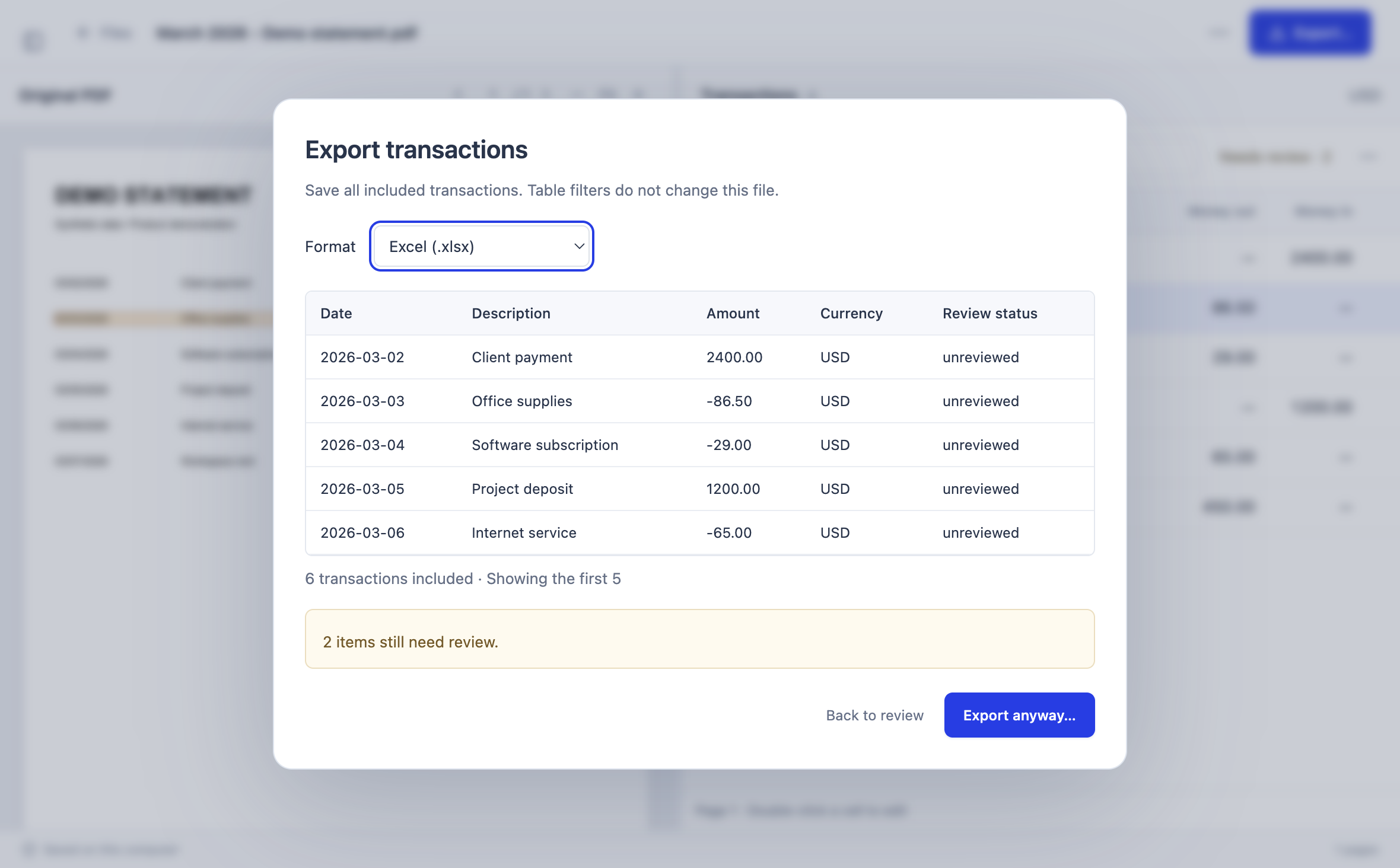
Preview the rows and save an Excel workbook only after you are comfortable with the reviewed result.
THE EXCEL WORKBOOK
The current XLSX export creates a Transactions worksheet. Dates are Excel dates, amounts are numeric values and descriptions remain text. The header stays visible when you scroll, and filters are enabled.
Current transaction export supports USD. Rows marked as excluded during review are not written to the workbook.
Deciding how to hand off the data? Compare formats in the bank statement CSV vs Excel guide.
DIGITAL AND SCANNED PDFS
Digital statements often provide cleaner text, but tables can still wrap descriptions, repeat headers or split transactions across pages. Check page boundaries and row order.
Faint characters, low resolution and unusual spacing can change dates or amounts. Compare difficult rows with the page image instead of assuming OCR is correct.
BEFORE YOU OPEN THE WORKBOOK
LOCAL BY DESIGN
Statement PDFs, extracted text, reviewed transaction data and the generated XLSX file are processed and stored locally. They are not uploaded to Stmtio for conversion.
Stmtio is not completely offline. Sign-in, subscription, device registration and page-allowance checks use online services. Read the Privacy Policy and the broader bank statement converter workflow.
COMMON QUESTIONS
Yes. Stmtio reads digital PDFs and includes local OCR for scanned pages. OCR and extraction can make mistakes, so compare every result with the original statement before exporting.
The XLSX workbook contains Date, Description, Amount, Currency and Review status columns. Dates and amounts are written as Excel date and numeric cells, while descriptions remain text.
No. Statement PDFs, extracted text, transaction review and XLSX creation happen on your computer. Sign-in, subscription, device and page-allowance checks use online services.
The current 0.1.0 transaction export supports USD. Do not relabel another currency as USD; confirm the currency and amount signs before using the workbook.
No universal compatibility claim is made. Layouts vary, and some statements require manual column mapping or corrections. Test a representative document before processing a larger batch.
Stmtio 0.1.0 is available for Windows x64 and macOS on Apple silicon or Intel. The preview installers are unsigned and may show operating-system warnings.
START WITH A REPRESENTATIVE STATEMENT
Download the unsigned Stmtio 0.1.0 preview for Windows x64, Apple silicon or Intel Mac. The first 10 pages are free.
Choose your installer ↗